
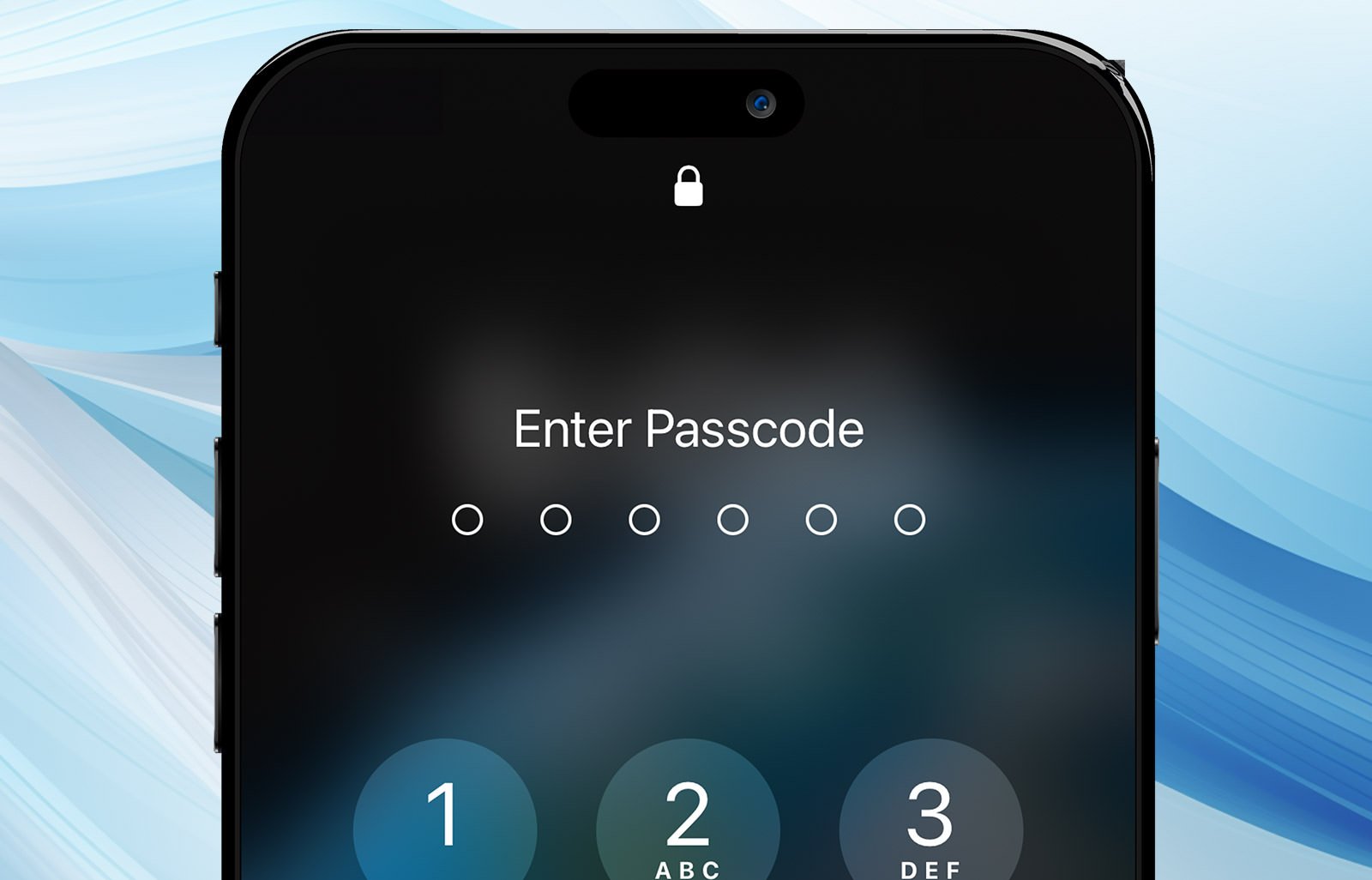
That cold dread. Your own iPhone, a device holding countless photos, contacts, and memories, is suddenly a useless brick. You’ve forgotten the passcode. Each incorrect guess feels like a step closer to a digital cliff, with the “iPhone Unavailable” message mocking your failing memory. The internet offers a confusing mess of solutions—some promise magic, others warn of total data loss. It feels like you’re trapped.
In a Nutshell
- iOS 17+ Lifeline: If you changed your passcode in the last 72 hours, there's a new, official way to get in without losing your data.
- Apple's Way = Data Loss: All official Apple methods for forgotten passcodes (like using a computer or iCloud) will erase your iPhone completely.
- Third-Party Tools are a Gamble: Software claiming to unlock any iPhone is risky. They can fail, be scams, or even install malware on your device.
Why Does Apple Force a Data Wipe?
This isn't a bug; it's a core security feature. After too many incorrect passcode attempts, your iPhone will lock you out for increasing amounts of time. If the 'Erase Data' option is enabled, it will automatically wipe itself after 10 failed tries to prevent a thief from brute-force guessing your code and accessing your private information.
This extreme measure is a direct reflection of Apple's philosophy on user privacy. Forcing a wipe prevents unauthorized access, period. It’s the digital equivalent of a self-destruct button for your data's protection, ensuring that even if your phone is stolen, your personal life remains yours.
The Safest Way In: iOS 17's Passcode Reset Feature
Forgetting a passcode is so common that Apple finally built a safety net. If you're using iOS 17 or later and changed your passcode within the last 72 hours, you have an out.
This is a game-changer because it’s the ONLY official method that doesn't erase your data. After a few failed attempts, you'll see a "Forgot Passcode?" option on the lock screen. Tapping this allows you to enter your previous passcode to set a new one and regain access.
Quick Action Plan:
- Enter the wrong passcode several times until the "iPhone Unavailable" screen appears.
- Tap Forgot Passcode? in the corner.
- Choose Enter Previous Passcode.
- Type in your old passcode, then create a new one.
Apple's Official Methods: The Nuclear Option
If the 72-hour window has passed or you're on an older iOS version, you're left with options that will erase your device. Hopefully, you have a recent backup.
Using a Computer (Recovery Mode)
This is the most common method. You'll need a Mac or a PC.
This process puts your iPhone into a special state that allows a computer to install a fresh version of iOS, wiping everything in the process, including your forgotten passcode.
- Turn Off Your iPhone: Make sure it's not connected to a computer.
- Enter Recovery Mode: The button combination depends on your model. While connecting your iPhone to the computer, press and hold the correct button until you see the recovery mode screen (it shows a computer and a cable).
- iPhone 8 or later: Use the Side button.
- iPhone 7/7 Plus: Use the Volume Down button.
- iPhone 6s or earlier: Use the Home button.
- Restore in Finder or iTunes: Your computer will pop up a message offering to Restore or Update. Choose Restore.
Using iCloud or the 'Find My' App
If you have 'Find My' enabled on your locked iPhone, you can erase it remotely from any web browser or another Apple device.
- Go to
iCloud.com/findor open the Find My app on another device. - Sign in with your Apple ID.
- Select your locked iPhone from the list of devices.
- Choose Erase iPhone and confirm.
The Murky World of Third-Party Unlocking Tools
Search online, and you'll be flooded with ads for software like Tenorshare 4uKey, Dr.Fone, and AnyUnlock. They promise an easy fix, but the reality is complicated and risky.
I know what you're thinking: "Maybe this is the easy way out." These services thrive on that sense of desperation. In observing the market, many use a bait-and-switch model, charging a small fee for an "eligibility check" before demanding a much larger payment for the actual unlock, with no guarantee of success.
Decoding the Different 'Locks'
Competitors often fail to explain that 'unlocking' isn't a one-size-fits-all problem. The success of these tools depends entirely on what kind of lock they're up against.
- Screen Passcode: This is what we've been discussing. Most third-party tools that handle this simply automate the official Apple Restore process, meaning they will also erase all your data.
- MDM Lock (Mobile Device Management): Often found on corporate or school iPhones, this lock restricts features. Some third-party tools can successfully bypass MDM without data loss because it's a less integrated form of security.
- Screen Time Passcode: Similar to MDM, this is a simpler lock that can sometimes be removed by third-party software without a full erase.
- iCloud Activation Lock: This is Apple's fortress. It's tied to the 'Find My' feature and prevents a thief from using a stolen phone even after it's been erased. Tools claiming to bypass Activation Lock on modern iPhones are almost universally considered scams or will install malware. Discussing this lock is crucial because using the wrong tool can leave you vulnerable, something you should be aware of, just like knowing the signs Is Your Phone Spying on You? 12 Signs You’ve Been Hacked (& How to Fix It).
Security Risks You Can't Ignore
Even if a tool works, what happens next? Apple explicitly warns that unauthorized software can cause "irreparable damage to the iPhone's software." Cybersecurity experts add that these tools can void your warranty, compromise your personal data, and leave your device vulnerable to malware. You're essentially trusting an unknown company with the keys to your digital kingdom, and that's a gamble few should take, especially when it could impact the phone's basic functions like the battery. After all, what's the point of an unlocked phone if you're left with a device that struggles to hold a charge, a major concern in the ongoing smartphone battery wars?
Real User Perspectives: Success or Scam?
User experiences paint a chaotic picture. Some users report success, particularly with MDM locks. One user noted, "I downloaded and paid for a month's subscription to [iMyFone LockWiper]. Lockwiper bypassed MDM screen…So it worked in this instance." However, many others feel cheated. Another user warned, "they are a scammer they have group in telegram they scamed with people i request to every one please don't pay any amount they are scammer." The consensus is that you must be extremely careful and do your research.
FAQs About Unlocking Your iPhone
Will using an official method always erase my data?
Yes. Unless you qualify for the 72-hour Passcode Reset feature in iOS 17, any official unlock method from Apple will restore your iPhone to factory settings, deleting all your data.
Can I take my iPhone to Apple to unlock it?
Yes, but they will follow the exact same procedure: erasing your device. If it's an Activation Lock issue, they can help only if you can provide definitive proof of purchase.
Are free iPhone unlocking tools safe?
Almost certainly not. Free tools are highly suspect and are often fronts for scams, data theft, or malware. The risk of using them far outweighs any potential benefit.
Your Next Move: The Smart Path Forward
Being locked out of your iPhone is stressful, but making a panicked decision can make things worse. The path forward is clear.
First, check if you can use the iOS 17 Passcode Reset feature. It’s your best and only hope to get back in without losing your data. If that's not an option, accept that your data will be erased and use the official Recovery Mode or iCloud method. This ensures your phone is unlocked safely and securely. Thinking about the design of your next phone, maybe something like the rumored iPhone Air will have better recovery options. Lastly, avoid the tempting promises of third-party unlocking software. The risks of data loss, malware, and financial scams are simply too high.