
Annoying pop-up ads on your Android phone can turn a smooth experience into a frustrating struggle. You're trying to read an article, play a game, or simply check your messages, and suddenly, a full-screen ad takes over. This isn't just irritating; it slows down your phone, drains your battery, and invades your privacy. It feels like a never-ending battle to keep your device ad-free, leaving you wondering if a truly peaceful mobile experience is even possible. Many users feel powerless against these digital interruptions, but effective solutions are built right into your phone, alongside powerful third-party options.
Key Takeaways
- Prioritize Built-in Defenses: Before installing anything new, leverage Android's native browser and system settings.
- Master Private DNS: Activate this powerful feature for widespread ad blocking across many apps, not just your browser.
- Hunt Down Sneaky Apps: Often, a recently installed app is silently causing those persistent, full-screen interruptions.
Reclaim Your Browser: Stop Internet Pop-Ups
When pop-ups appear only while browsing, the browser itself is often the source, typically due to website permissions or cached data. Adjusting these settings provides an immediate fix for most browser-based interruptions, restoring a cleaner online experience.
Adjust Google Chrome Settings
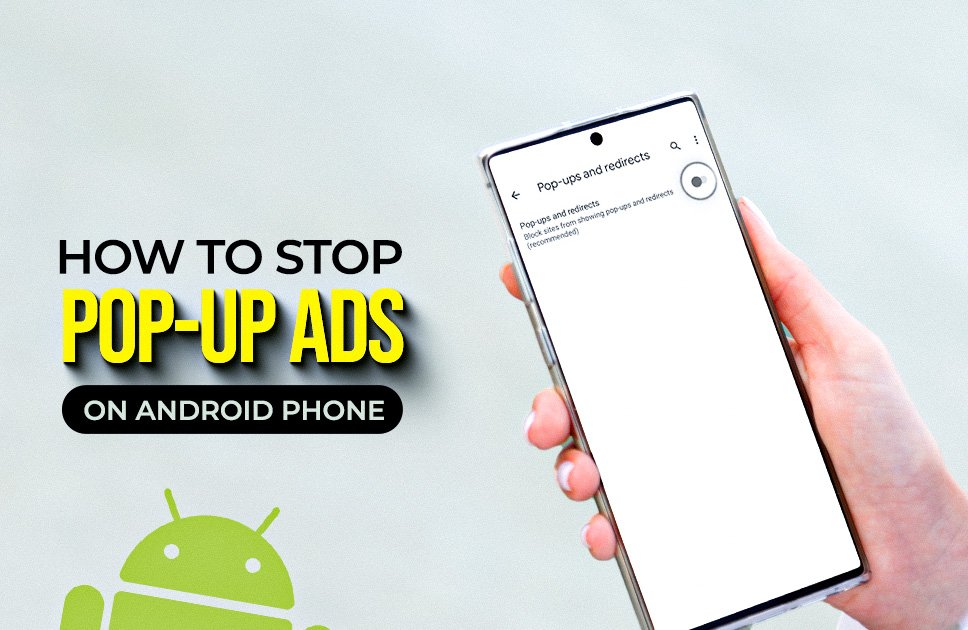
Google Chrome users have powerful tools to fight browser pop-ups. Access your Chrome settings, then tap 'Site settings'. Here, ensure 'Pop-ups and redirects' is set to OFF. Additionally, check the 'Ads' section and turn that OFF as well. This simple action eliminates the majority of website-initiated pop-ups. This is a primary defense.
"I found that clearing the cache of my browser and social media apps every week helps a lot, not just with ads but also keeps my phone running smoother." – User Feedback
Block Ads System-Wide with Private DNS
Android's Private DNS feature acts as a powerful, built-in ad filter that can block ad requests before they even reach your device, impacting ads across many apps and not just your browser. This offers a robust, lightweight, and system-wide defense.
Configure Your Private DNS Hostname
This is a game-changer for many users. Go to your phone's 'Settings,' then 'Network & internet,' and find 'Private DNS.' Select 'Private DNS provider hostname'. Type in dns.adguard.com for effective ad blocking. For stronger privacy with some ad-blocking, try dns.cloudflare-dns.com. Save your choice. This method blocks ads effectively, as reported by users who say, "The Private DNS trick changed my life!"
"Many users overlook Android's native Private DNS feature. Setting it to a reputable ad-blocking DNS server like AdGuard DNS is one of the most effective, lightweight, and system-wide solutions available today." – Mobile OS Expert
Unmask the Hidden Culprit: Sneaky Apps
If ads pop up randomly, even when your browser is closed, a recently installed app often silently exploits system permissions to display intrusive ads. Identifying and removing these apps is crucial for eliminating persistent, device-wide interruptions.
Check 'Display Over Other Apps' Permissions
This is where many persistent pop-ups originate. Navigate to 'Settings,' then 'Apps,' and look for 'Special app access.' Tap on 'Display over other apps.' Review the list. Uninstall any unfamiliar apps or those that clearly shouldn't need to draw over other screens. A common mistake is to ignore this permission during app installation; suspicious apps often request it.
"The first line of defense against aggressive pop-up ads on Android isn't a complex app, but a deep dive into your 'Display over other apps' permissions. Malicious apps often exploit this access." – Android Security Researcher
Review App Permissions and Notifications
Regularly check what permissions your apps truly need. Go to 'Settings,' then 'Apps,' find a problematic app, and adjust its permissions. Specifically, check if it has permission to show 'notifications' or 'display over other apps' unnecessarily. Disabling notifications from ad-heavy apps can also reduce their visual footprint.
Dedicated Ad Blockers: When Native Tools Aren't Enough
For comprehensive, system-wide ad blocking that native Android features sometimes miss, dedicated ad blocker applications provide an additional layer of defense. These tools often use local VPNs to filter out ads without compromising data privacy.
Consider Reputable Ad Blocker Apps
While Android offers powerful built-in options, some users require more aggressive blocking. Apps like AdGuard or Blokada offer comprehensive solutions. They work by creating a local VPN on your device to filter out ad traffic. Many provide free basic versions, with paid options for advanced features. User experience indicates, "I finally paid for AdGuard, and it's been worth every penny for true peace and quiet on my phone."
Quick Fixes: Clear Cache for Problematic Apps
Sometimes, an app may display excessive ads due to corrupted data or an overloaded cache. Clearing the cache provides a fast, non-destructive method to resolve temporary ad display issues, often improving overall app performance as well.
Manage App Storage & Cache
If a specific app becomes an ad factory, clearing its cache can help. Go to 'Settings,' then 'Apps,' find the app, tap 'Storage & cache,' and then 'Clear cache.' This often resolves temporary glitches without deleting your personal app data. Be cautious with 'Clear data' as it resets the app entirely.
Frequently Asked Questions (FAQs)
Why do pop-up ads suddenly appear on my Android phone?
Pop-up ads usually appear due to a recently installed app that has intrusive permissions, or they are browser-based from specific websites. Less commonly, malware can also cause persistent pop-ups. Identifying the source is the first step.
Will using Private DNS slow down my internet?
For most users, using a reputable Private DNS server like dns.adguard.com or dns.cloudflare-dns.com will not noticeably slow down internet speed. In some cases, by blocking ad content, it can even make browsing feel faster.
Can free ad blocker apps be trusted?
Many free ad blocker apps are effective, but users should research them carefully. Some free options may not be as comprehensive or could collect user data. Premium versions often offer more robust features and better privacy guarantees, as "many just didn't work consistently."
Conclusion: Reclaim Your Android Experience
You now possess the tools and knowledge to take back control of your Android phone from relentless pop-up ads. From tweaking browser settings and leveraging Android's powerful Private DNS to identifying rogue apps and considering dedicated blockers, each step contributes to a smoother, ad-free digital life. Don't let unwanted interruptions steal your peace. Start implementing these fixes today and enjoy the quiet.