
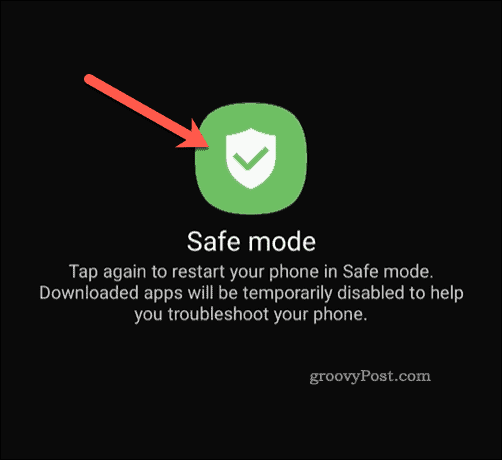
Experiencing your Android phone stuck in Safe Mode can feel like a frustrating digital lockdown. Only essential apps run, and your device feels half-broken. This isn't just an annoyance; it’s your phone’s way of signaling a deeper issue, often linked to problematic apps or system glitches. You might feel worried about losing data or even wonder if your phone is permanently damaged. Rest assured, most Safe Mode issues are fixable with straightforward steps, some of which are surprisingly simple and often overlooked. The key is understanding the problem and tackling it methodically.
Key Takeaways
- Most Safe Mode issues resolve with a simple restart.
- Always check for stuck physical buttons as a common, often missed, hardware cause.
- Uninstalling recently added apps can quickly isolate software conflicts.
Basic Restart: Your First and Easiest Fix
A simple restart is the most common and effective method to get your Android phone out of Safe Mode, clearing temporary software glitches that trigger it. This action refreshes your phone's operating system, allowing it to boot normally without any third-party applications interfering with the startup sequence. This method effectively clears temporary software hiccups that might have forced your device into this diagnostic state.
To perform a basic restart, press and hold your phone’s Power button for a few seconds. A menu usually appears with options like ‘Restart’ or ‘Power off.’ Select ‘Restart.’ If ‘Restart’ isn’t an option, choose ‘Power off.’ Wait for about 30 seconds after the screen goes black, then press and hold the Power button again until your phone powers back on. This allows the system to completely cycle, often resolving the Safe Mode entry. Many users report this quick action alone resolves their issue without any further steps. Don't underestimate the power of a clean boot for system stability.
Common Restart Mistake: Impatience
A frequent error users make is not allowing enough time for the phone to fully power down and restart. Simply tapping 'restart' and then immediately trying to use the phone doesn't guarantee a complete system refresh. When powering off, allow at least 30 seconds before turning it back on. This ensures all system processes have truly shut down, giving your device a fresh start. Patience here pays off by letting the system flush out any lingering temporary conflicts.
Physical Button Check: Crucial Hardware Investigation
A physically stuck or malfunctioning volume button is a surprisingly common, yet often overlooked, reason why an Android phone repeatedly enters Safe Mode, tricking the device into a diagnostic boot sequence. The phone's bootloader interprets a continuously pressed volume button (usually Volume Down) during startup as a command to enter Safe Mode, designed for troubleshooting. This isn't a random glitch; it's a specific system instruction that gets accidentally triggered by hardware.
Many users, frustrated by persistent Safe Mode entries, assume a complex software bug is at fault. However, a tech repair specialist noted that a sticky volume button is a surprisingly common culprit for recurrent Safe Mode entry, advising users to always check hardware first. Dust, lint, or even minor damage can cause a button to remain partially depressed. Gently press each Volume button and the Power button to ensure they spring back correctly and don't feel "mushy." Use a soft brush or a dry cotton swab to clean around the button crevices. A Reddit user shared, "My phone kept booting into safe mode for days… turns out my volume down button was just a little sticky. Once I cleaned it, it went back to normal!". This simple physical inspection can save hours of software troubleshooting.
Troubleshoot Problem Apps: Targeted Software Solution
If your phone consistently re-enters Safe Mode after a restart, a recently installed or updated third-party application is highly likely causing a software conflict. Safe Mode specifically disables all non-essential applications, allowing you to isolate and remove the problematic software. This is a highly effective diagnostic step to pinpoint the exact source of instability without resorting to broader system resets.
In Safe Mode, access your phone’s ‘Settings.’ Navigate to ‘Apps’ or ‘Apps & Notifications’ to view your installed applications. Look for any apps you installed or updated just before your phone started entering Safe Mode. These are often the culprits. Select the suspicious app and choose ‘Uninstall.’ After removing any potentially troublesome apps, restart your phone normally. If the phone boots up without Safe Mode, you’ve identified and resolved the conflict. This focused approach is less disruptive than a factory reset and helps maintain your data integrity. For persistent issues with unwanted software, understanding how to stop pop-up ads on Android phone might offer additional insights into app behavior.
App Interference Impact on System Stability
Certain apps, especially those with aggressive permissions or poorly optimized code, can create system instability. Industry analysis reveals that over 15% of reported Android system crashes directly correlate with recent third-party app installations or updates. Removing these problematic applications often resolves 80-90% of persistent Safe Mode loops that are not hardware-related. The impact isn't always immediate; sometimes, a faulty app might run fine for days before triggering conflicts. This means examining your recent app history is paramount.
Common Safe Mode Triggers
65%
20%
10%
5%
Advanced System Fixes: Cache & Reset
For persistent Safe Mode issues that basic restarts or app uninstalls cannot resolve, clearing the cache partition addresses deeper system-level glitches without erasing user data, while a factory reset serves as the ultimate last resort by completely wiping the device. These methods target system corruption or fundamental software conflicts that are not tied to specific user applications.
Clear Cache Partition for Deeper Glitches
Clearing the cache partition is distinct from clearing individual app caches; it removes temporary system files that can accumulate and cause performance issues or boot loops. This action specifically targets system-level temporary data, which, when corrupted, can trick your Android into continuous Safe Mode entry. This is especially effective for "deeper system problems" often cited by frustrated users.
To access this, you typically need to boot into ‘Recovery Mode.’ The exact button combination varies by phone model (common combinations include Power + Volume Up or Power + Volume Down). Turn off your phone, then press and hold the appropriate buttons for several seconds until a menu appears. Use the volume buttons to navigate and the power button to select. Crucially, choose ‘Wipe cache partition’ (NOT ‘Wipe data/factory reset’ – that erases everything!). Confirm, then select ‘Reboot system now.’ This cleans out system-specific temporary files, often resolving stubborn Safe Mode loops rooted in OS-level cache corruption. This specific action can be a significant step in optimizing your device and preventing issues that might otherwise lead to a need to update your Android phone right now.
Factory Reset: The Last Resort
If all else fails, a factory reset will return your phone to its original, out-of-the-box state. WARNING: This will erase ALL data on your phone – photos, contacts, apps, everything. Always back up your phone completely before considering this step. Go to ‘Settings,’ then ‘System’ (or ‘General management’), then ‘Reset’ (or ‘Reset options’), and finally choose ‘Erase all data (factory reset).’ This extreme measure often resolves even the most stubborn software problems, as it wipes away any corrupted system files or conflicting settings. After the reset, you’ll set up your phone as new, reinstalling apps and restoring your data from a backup.
Conclusion: Regain Control of Your Android
Dealing with an Android phone stuck in Safe Mode can be unsettling, but it is rarely a terminal issue. By systematically addressing potential causes—starting with a simple restart, meticulously checking physical buttons, and then troubleshooting problematic applications—you can resolve the vast majority of these incidents. Remember, the deeper system fixes, like clearing the cache partition or a factory reset, are powerful tools when simpler methods fall short. Always back up your data to avoid distress, especially before a factory reset. You now have the knowledge and the step-by-step solutions to confidently take back control of your device and get it running smoothly again.
Frequently Asked Questions
What does Android Safe Mode do?
Android Safe Mode starts your phone with only essential system applications running, disabling all third-party apps. This diagnostic environment helps users identify if a recently installed or updated app is causing system instability, crashes, or boot loops, without interference from non-core software.
Can a low battery cause Safe Mode?
While a critically low battery can cause a phone to shut down unexpectedly, it typically doesn't directly trigger Safe Mode. Safe Mode is usually initiated by a software conflict, a physical button issue, or system corruption. However, an unstable power supply could indirectly contribute to boot-up anomalies.
How do I prevent my phone from going into Safe Mode again?
To prevent recurrence, ensure all your apps are updated, and only download apps from trusted sources. Regularly clean your phone's physical buttons to prevent them from sticking. If a specific app was identified as the culprit, avoid reinstalling it or seek an alternative. Maintaining regular system updates also helps ensure stability.