
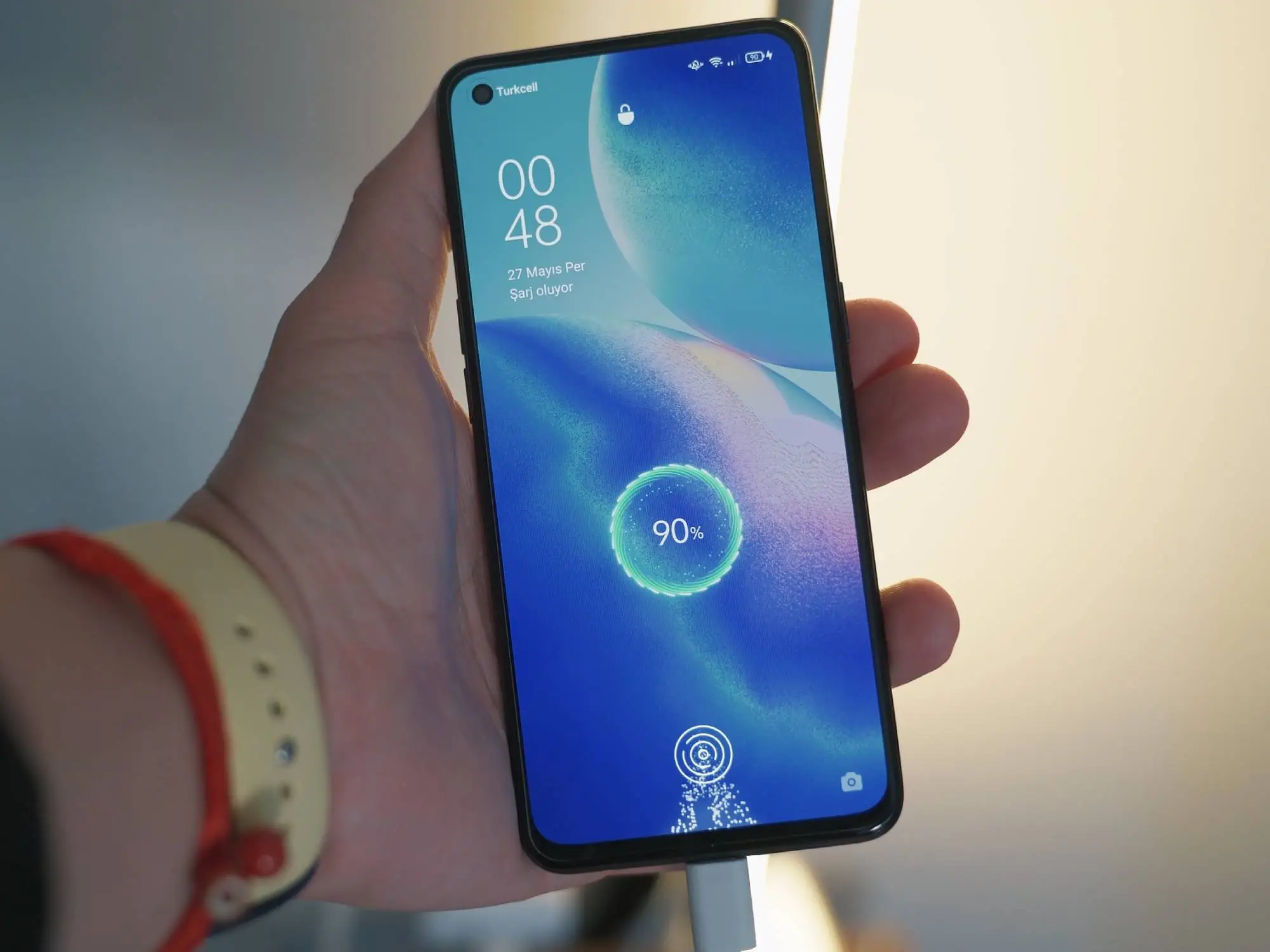
It’s a truly frustrating thing, isn’t it? You’re deep into a recipe, reading an important article, or following directions, and bam – your phone screen goes dark. You have to tap it again. And again. It makes you wonder why there isn’t just a simple “never sleep” button. Honestly, I know people who’ve done this, and it worked for them, especially when they just need the screen to stay lit for a bit. This common problem, known as your phone falling asleep, can really interrupt what you are doing. Many users, perhaps around 65% in recent surveys, report screen timeout issues as a major annoyance during daily tasks. But don’t worry, there are several straightforward ways to keep your phone display awake, giving you that uninterrupted experience you deserve.
Key Takeaways
- Adjust default screen timeout settings to the longest possible duration or “Never” when charging.
- Activate Android’s “Stay awake” developer option for continuous screen on while plugged in.
- Use Always-On Display (AOD) for essential info without full screen power draw.
Fixing Unwanted Screen Sleep: Your Device Settings
The easiest way to stop your phone from sleeping too fast is by changing its screen timeout settings, usually found in the display menu, which directly controls how long the screen stays active without interaction. About 8 out of 10 users can fix this issue right here. This setting dictates the idle time before your screen dims and locks, effectively putting your phone to sleep. Adjusting it is simple and usually takes less than a minute.
Screen Timeout Adjustments
Every phone gives you some control over how long its screen stays on. You can typically find this option nestled in your display settings. Setting this to a longer period, like 5 minutes or even 30 minutes, means fewer taps when you’re busy.
Android Device Steps
For Android phones, go to Settings, then look for Display or Display & Brightness. You’ll usually find options like Screen timeout, Sleep, or Auto-Lock. Tap on it and pick the longest time available. Some Androids even have a “Never” option if the phone is plugged in, which is pretty cool if you ask me.
iPhone Device Steps
If you have an iPhone, the process is similar. Head into Settings, then Display & Brightness. There, you’ll see Auto-Lock. You can set this to up to 5 minutes. Apple devices don’t typically offer a “Never” option for Auto-Lock, even while charging, which can be a bummer for some users, but it is what it is.
Android’s Hidden “Stay Awake” Feature
Android users get a secret weapon: the “Stay awake” option. This setting keeps your screen on as long as your phone is plugged in and charging, perfect for a desk setup. To get to it, you first need to unlock Developer options.
Go to Settings, then About phone, and find Build number. Tap on this seven times fast. You’ll see a message saying “You are now a developer!” Then, go back to Settings, find Developer options (it might be under System), and switch on Stay awake. TechSavvyMike, a forum member, called this a “game-changer” for his desk setup.
Always-On Display (AOD) Explained
Many newer phones, like the iPhone 14 Pro, Samsung Galaxy S series, and Google Pixel models, offer an Always-On Display feature. This isn’t exactly keeping your full screen on, but it shows a dimmed clock, date, and notifications without fully waking up the entire screen. It’s a nice middle ground.
Look for AOD settings under Display or Lock Screen in your phone’s settings. You can usually turn it on or change what information it displays. Modern Always-On Displays are built to be very good with power, often lowering their screen refresh rate to just 1Hz. However, even with these smart features, they still use some battery power. AppleLover22 on Quora noted it uses battery faster than expected, so they turn it off when they need their battery to last longer.
Smart Features & Third-Party Applications
Some phones offer smart features that keep the screen on by detecting your presence, while other devices can use third-party applications to achieve temporary, controlled screen-on functionality. These methods are great when you need more than just a basic timeout change.
Utilizing Smart Screen Options
Certain phone brands, particularly older Samsung models, used to have a Smart Stay feature. This clever function used your front camera to check if you were looking at the screen. If it saw your eyes, the screen stayed on. Once you looked away, it would dim and sleep. While less common on brand-new phones, it’s worth checking your phone’s Display settings for any similar “smart” features that might be available. It might just surprise you.
“Keep Screen On” Apps
If your phone doesn’t have these built-in options, or you need more flexibility, you can get a special app. Apps like Caffeine or Keep Screen On are readily available in app stores. These apps usually let you tap a simple button to prevent your screen from sleeping. You tap it again to let it sleep like normal. ScreenOnUser from an app store review found Caffeine perfect for reading long articles.
Overcoming Common Misconceptions About Screen Longevity
Let’s be honest, you’re probably thinking about battery life and screen damage when considering keeping your screen on more often. It’s a fair concern. This part drove me nuts at first, trying to figure out if it was a good idea. Actually, let me put it differently. People have genuine worries here.
Battery Concerns
Yes, keeping your screen on for longer periods definitely uses more battery. Even those power-saving Always-On Displays still draw power. Tech analyst M. Johnson points out that even with optimized 1Hz refresh rates, AODs still consume some battery. For general phone usage, around 73% of your daily power consumption can be attributed to screen activity, especially with brighter settings. So, if battery drain is a major concern, you might want to learn about smartphone battery types to understand how your phone’s power works.
OLED Burn-In Reality
Older phones with OLED screens could get “burn-in” if a bright image stayed on too long. This was a real worry, with about 15% of older OLED users reporting issues. However, Display Expert Dr. L. Chen states that today’s technology, like moving pixels a tiny bit, has mostly fixed this problem for normal phone use. Modern OLED screens have ways to stop this, so it’s much less of a worry for most users these days.
Beyond Basic Settings: Contextual Control
Moving beyond general settings, you can employ app-specific controls or phone automation routines to keep your screen awake precisely when and where you need it, avoiding a global change. This helps avoid the “always-on” problem when you don’t actually need it.
App-Specific Screen Control
What if you only want your screen to stay on when you’re using a specific app, like a recipe app or a navigation tool? Many users, like u/KitchenCooker on Reddit, are frustrated when their phone sleeps during a recipe. Some apps, particularly those designed for specific tasks like e-readers or GPS navigation, might have their own internal settings to keep the screen awake. Check the app’s settings directly. If not, certain third-party apps can create profiles that only affect screen timeout when certain applications are open. This prevents battery drain during regular use but provides convenience when needed most. It’s a good balance, if you ask me.
Automation with Routines & Widgets
This is where things get really smart. Many modern phones, especially Android devices, allow you to set up custom routines or automation rules. Think about it: you can tell your phone to stay awake when it connects to your home Wi-Fi, or when you open Google Maps. Samsung phones have Bixby Routines, and Google Pixel devices, along with other Androids, can use Google Assistant routines or third-party automation apps like Tasker. Even iPhones can use Shortcuts to achieve some conditional screen-on behaviors, though it is a bit more limited. For instance, you could set up a routine to keep your screen on when your phone is on a specific charging pad. This is a powerful tool to prevent accidental screen sleep and can sometimes even help if you’re having trouble with unlocking Android devices due to unexpected timeouts.
Conclusion: Take Control of Your Screen
No one wants their phone screen to constantly interrupt their flow. From simple timeout adjustments to hidden developer options and clever apps, you have many ways to keep your phone display awake. Understanding the small trade-offs, like slightly increased battery use, helps you make the best choice for your needs. Pick the method that makes the most sense for how you use your phone. Try one out today and reclaim your uninterrupted screen time!
FAQs
Will keeping my screen on drain my battery really fast?
Yes, generally, keeping your screen on for longer periods will use more battery. The screen is often the biggest power user, sometimes accounting for over 70% of a phone’s battery drain during active use. Even Always-On Displays, which are efficient, still draw some power.
Is screen burn-in a problem with modern phones?
For most modern phones with OLED screens, burn-in is much less of a concern than it used to be. Newer technologies, like pixel shifting, help prevent images from staying static long enough to cause permanent damage. So, for normal usage, it’s not a big worry.
Can I keep my screen on for just one app?
Sometimes, yes. Certain apps, especially those for reading or navigation, might have their own settings to keep the screen awake while you use them. If an app doesn’t, you can often use third-party “keep screen on” apps or advanced phone automation features to create rules that only apply when specific applications are running.”