Smartphone reviews, tips, news, guides, and updates for Android & iPhone.

Go Wireless: Your Ultimate Android Auto Adapter Guide
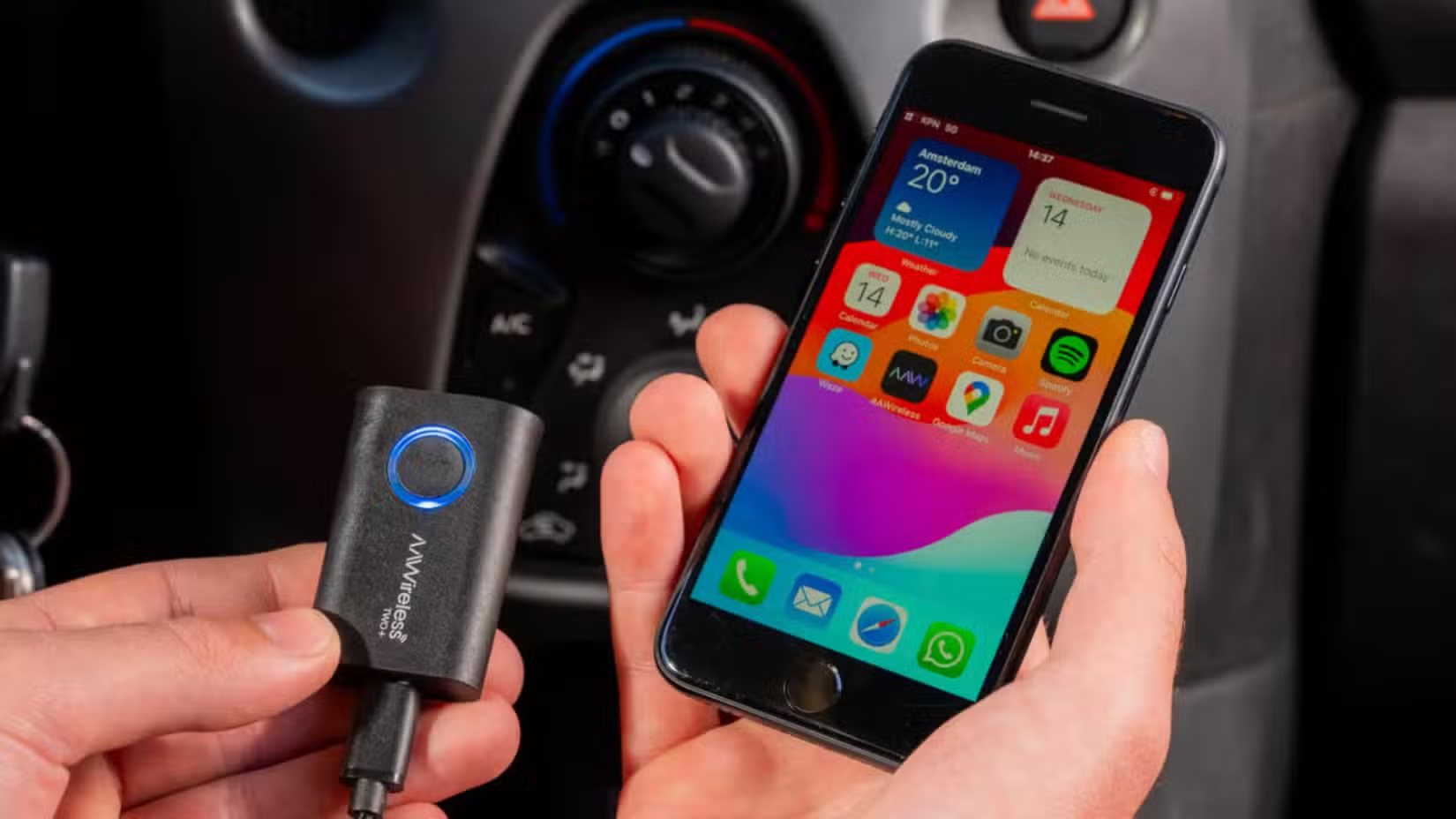
You get in the car, ready to go. But first, the ritual: find the USB cable, untangle it, and plug in your phone. What if you could just get in and drive, with Android Auto appearing on your screen automatically? That freedom from fumbling with wires is exactly what a wireless Android Auto adapter offers. But I know what you’re thinking—is another gadget really worth it? Will it be a complicated, laggy mess? Many drivers have felt that same skepticism, only to find it’s a genuine game-changer they can’t live without.
Quick Summary
- Cut the Cord: A wireless Android Auto adapter plugs into your car’s USB port, converting your existing wired system into a seamless wireless one.
- Performance is Key: Look for adapters with 5GHz Wi-Fi for a faster, more stable connection. Models with companion apps often provide crucial firmware updates that fix bugs and improve reliability.
- Know the Trade-Offs: The biggest downsides are increased phone battery drain and potential for minor audio lag. A wireless charging pad is almost a necessity for longer trips.
What is a Wireless Android Auto Adapter?
A wireless Android Auto adapter is a small, plug-and-play device that connects to your vehicle’s USB port—the same one you use for wired Android Auto. It acts as a bridge, using Bluetooth and Wi-Fi to connect your phone to your car’s infotainment system without a cable. Think of it as a magic wand that instantly transforms your wired setup into a hands-free, set-and-forget command center. Once installed, your phone will connect automatically every time you start the car, even if it’s still in your pocket or bag.
How Does It Actually Work?
It’s simpler than you might think. The adapter first uses Bluetooth to make an initial “handshake” with your phone. Once that connection is established, it switches to a much faster and more robust 5GHz Wi-Fi connection to handle the data transfer needed for maps, music, and apps. This two-step process ensures a stable and responsive experience. Your car must already support the wired version of Android Auto for these adapters to function.
Choosing the Right Adapter: Key Features to Look For
Not all adapters are created equal. In observing market shifts, it’s clear that reliability and software support have become the primary differentiators. While many devices look similar, their internal chipsets and firmware can vary wildly, leading to different performance levels.
Companion Apps and Firmware Updates
Some of the best adapters, like those from AAWireless, come with a dedicated companion app. This is more than just a setup tool; it’s how you’ll receive crucial firmware updates. User feedback is clear: many connectivity issues and bugs are resolved with a simple update. These apps can also offer advanced settings to fine-tune performance for your specific vehicle, such as adjusting for audio delay or fixing connection quirks.
Expert Opinion: The AAWireless adapter shines with its companion app… This app gives users a ton of control over how the dongle operates, which is a key differentiator from its competitors. – Android Central
Connection Speed and Stability
Look for an adapter that uses 5GHz Wi-Fi. This frequency is less crowded than the older 2.4GHz band, offering a faster and more stable connection with lower latency. This translates to a smoother experience with less audio skipping and quicker map rendering. While many brands offer this, top performers like the Ottocast A2AIR Pro are often praised for their reliable, automatic reconnection.
Adapter Feature Comparison
Connection Stability (User Reported)
5GHz Wi-Fi: 90%
2.4GHz Wi-Fi: 65%
Setup Easiness
Plug-and-Play (e.g., Motorola MA1): 95%
App-Assisted Setup: 80%
The Real-World Experience: Pros and Cons
Going wireless is a significant quality-of-life upgrade, but it’s not without its trade-offs. Here’s what real users report after making the switch.
The Good: Unbeatable Convenience
The overwhelming sentiment is positive. As one user put it, “It’s a complete game-changer. I will never go back to using a wire.” The convenience of hopping in your car and having everything connect automatically is the primary benefit. It’s especially useful for short trips where plugging in feels like a hassle.
The Bad: Battery Drain and Heat
The most common complaint is a significant increase in phone battery consumption. Because your phone is constantly using both Wi-Fi and Bluetooth to stream data, its battery will drain much faster than with a wired connection. One user noted, “My phone gets really hot and the battery dies so fast now.” This makes a wireless charging pad almost essential for long drives. While this solves one problem, it’s a factor to consider in the overall cost and setup. For more context on how modern features impact your device, see how some believe that AI phones are a battery-killing nightmare.
The Annoying: Lag and Connection Drops
While usually stable, occasional hiccups can occur. Some users report a 1-2 second delay when skipping songs or interacting with the screen. It’s a minor annoyance but noticeable. More frustrating are the rare instances when the adapter fails to connect upon starting the car, forcing you to unplug it and plug it back in.
A Common Mistake to Avoid: Many users blame the adapter for connection issues when the real culprit is their car’s USB port. Some older vehicles have underpowered USB ports that can’t provide enough stable electricity, causing the adapter to randomly restart or fail. Before you buy, ensure your car’s data port provides sufficient power.
Troubleshooting Common Connection Problems
When your adapter doesn’t connect, it can be incredibly frustrating. But before you give up, run through these simple troubleshooting steps that solve most issues.
- Restart Everything: The oldest trick in the tech book still works. Restart your phone and turn your car off and on again.
- Clear the Cache: Go into your phone’s settings, find the Android Auto app, and clear its cache and storage. This resolves many software glitches.
- Re-Pair the Connection: In your phone’s Bluetooth settings and your car’s infotainment system, “forget” the adapter and your phone. Then, go through the initial pairing process again.
- Check for Updates: This is critical. Check for updates for the Android Auto app in the Play Store and for the adapter’s firmware through its companion app.
If you find your phone is consistently sluggish, it might be worth doing some digital spring cleaning. Our guide on how to clean your smartphone storage offers simple steps that can improve overall performance.
Is It Worth the Upgrade?
For the vast majority of Android Auto users, the answer is a resounding yes. The convenience of a wireless connection fundamentally improves the driving experience, eliminating the daily annoyance of cables. While the issues of battery drain and occasional lag are real, they are manageable trade-offs for the freedom you gain.
If you take frequent short trips or simply despise cable clutter, a wireless adapter is one of the best tech upgrades you can make for your car. Stop fumbling with wires and start enjoying the seamless, modern convenience you deserve.
Frequently Asked Questions
Does a wireless adapter drain my car’s battery?
No. The adapter is powered by your car’s USB port, which is only active when the engine is on. It will not draw power or drain your car’s battery when the vehicle is turned off.
Will this work if my car doesn’t have Android Auto?
No. A wireless adapter can only convert an existing wired Android Auto system to a wireless one. Your car must have factory-installed wired Android Auto for it to work.
What’s the difference between the Motorola MA1 and other adapters?
The Motorola MA1 is known for its pure simplicity and plug-and-play setup, as it was designed with Google’s direct input. Other adapters, like the AAWireless, often include a companion app that allows for more customization and firmware updates to address specific car compatibility issues. To get a full picture of your phone’s capabilities, you might want to look at our guide on how to check your Android’s battery health.