Smartphone reviews, tips, news, guides, and updates for Android & iPhone.

Check Your Android’s Battery Health: A Simple Guide
Is your phone dying faster than it used to? You’re not alone. It’s a simple question that haunts many of us: “What’s my phone’s battery health?” It’s frustrating, especially when you hear about the straightforward percentage iPhones display. I know what you’re thinking: Android must have a simple way to do this, and I just can’t find it. The truth is, it’s a bit more complicated, but don’t worry. You absolutely can get the answers you need.
Key Takeaways
- Native Check: The quickest way is in Settings > Battery > Battery Health. However, this feature is only available on some newer Android phones, like recent Samsung and Google Pixel models.
- Third-Party Apps: For a precise percentage on almost any Android phone, an app like AccuBattery is the most reliable solution. It measures your battery’s actual capacity over a few charge cycles.
- The Real Question: More important than any number is your real-world experience. If your phone comfortably lasts through your day, its battery health is good enough for your needs.
Why Android Makes Battery Health So Hard to Find
The simple truth is that, for the most part, Google doesn’t give you a way to check your Android battery health. At least, not in the same way Apple does. This isn’t an oversight; it’s a different philosophy. Android runs on thousands of different devices from hundreds of manufacturers, making a single, universal standard difficult to implement. Apple, controlling both hardware and software, can offer a unified experience. It’s a key difference when deciding between an iPhone or Android: Your Simple Guide to Choosing the Right Phone. This leaves users hunting for information that should be front and center.
Chris Smith, BGR: “The simple truth is that, for the most part, Google doesn’t give you a way to check your Android battery health. At least, not in the same way Apple does.”
Direct Methods: Checking in Your Phone’s Settings
For those with newer phones, the situation is improving. Manufacturers are slowly adding more transparent battery tools directly into the operating system. Here’s where to look first.
For Newer Samsung & Pixel Phones
If you have a recent device, you might be in luck. The process is straightforward:
- Navigate to Settings.
- Scroll down and tap on Battery (or “Battery and device care” on Samsung).
- Look for a Battery Health or Battery Information menu.
On some devices, you’ll see a simple status like “Good.” On others, like Google Pixels running recent Android versions, you’ll find a ‘cycle count’ under Settings > About Phone > Battery Information.
Understanding Battery Cycle Count
A battery cycle count is a tally of how many times your battery has been fully charged and discharged. One cycle is equivalent to a 0% to 100% charge. Most modern phone batteries are designed to retain about 80% of their original capacity after 500 charge cycles. A lower cycle count is always better.
Arol Wright, XDA Developers: “A battery cycle count is a better indicator of battery health than just age alone…a two-year-old phone that has barely been used will have a much healthier battery than a one-year-old phone that is constantly being charged and discharged.”
So what’s a good number? While it varies, here are some general benchmarks:
- Under 100 cycles: Excellent, like new.
- 100-300 cycles: Normal wear for a phone under two years old.
- 300-500 cycles: Noticeable degradation. You’re likely charging more often.
- Over 500 cycles: Significant capacity loss. The battery is nearing the end of its optimal life.
Here’s a visual of how capacity typically degrades:
Battery Capacity After 500 Cycles
80%
Third-Party Apps: The Universal Solution
If your phone’s settings leave you with vague answers like “Good” or no information at all, a third-party app is your best bet for getting a concrete percentage.
AccuBattery: Your Best Bet for a Clear Percentage
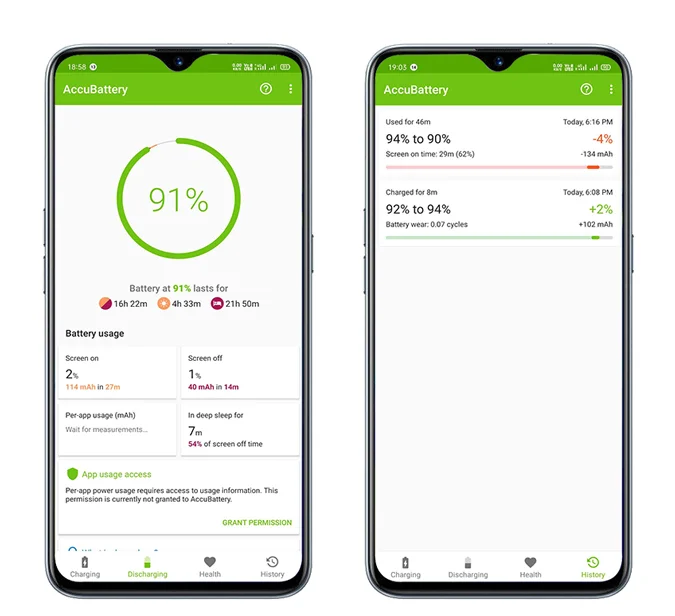
AccuBattery is one of the best apps for getting more information about your phone’s battery. It works by measuring the actual energy your battery takes in during a charge and compares it to its original design capacity. After a few full charge-discharge cycles, it gives you a surprisingly accurate health percentage.
One user noted, “AccuBattery is the only thing that works for me. After a week, it said my battery health was at 91%, which seems about right for my year-old phone.”
Joe Fedewa, How-To Geek: “The app is designed to measure the actual battery capacity in your phone and compare it to the advertised capacity from the factory.”
Quick Action Plan: Download AccuBattery from the Play Store, let it run for several days, and check the ‘Health’ tab for your estimated capacity.
The Common Mistake: Focusing Only on the Percentage
Here’s the most important takeaway: Don’t get obsessed with the exact number. The single most vital question is, “Does my phone still last long enough for my day?” If the answer is yes, your battery health is functionally fine, regardless of whether it’s at 95% or 85%.
Instead of a number, look for these real-world signs of a failing battery:
- Sudden Shutdowns: The phone dies unexpectedly, even when it shows 20% or 30% charge left.
- Extreme Heat: The device gets unusually hot during normal charging or light use.
- Bloating: In rare cases, a failing battery can physically swell, pushing the screen or backplate out. If you see this, stop using the phone immediately.
If you’re noticing these issues, the battery’s health is poor, no matter what any app says.
FAQs: Your Battery Health Questions Answered
Why does my phone’s battery drain so fast?
Several factors can cause rapid battery drain. Modern features, especially those in AI-powered devices, are notoriously demanding. In fact, many users find that AI phones are a battery-killing nightmare. Other causes include rogue apps running in the background, poor signal strength, or simply an old battery that can no longer hold a full charge.
Can I improve my battery’s health?
You cannot reverse the chemical aging of a lithium-ion battery. However, you can sometimes fix software glitches that make your battery seem worse than it is by performing a battery calibration. This process, which involves fully draining and then fully charging the phone, helps the Android OS to correctly read the battery’s current capacity. It won’t restore lost health, but it can make your battery meter more accurate.
Is it worth replacing my phone’s battery?
It depends on the age and value of your phone. For a two-year-old flagship phone, a battery replacement (typically costing between $70-$120) can feel like getting a new device for a fraction of the price. For an older or budget device, the cost of replacement might be close to the phone’s total value. It’s a key question to ask when considering how long can your phone REALLY last.
What about old dialer codes?
The old trick of dialing to find battery information no longer works on most modern Android phones. This menu now typically shows network and usage statistics but has had the specific battery health information removed in recent Android versions.
Your Final Action Plan
You came looking for a simple percentage, and now you know why Android makes it so difficult. But more importantly, you have a clear path forward.
- First, check your settings. Go to Settings > Battery. If you see a “Battery Health” option, you have your answer.
- If not, download AccuBattery. Let it run for a week to get the most accurate health estimate available.
- Finally, trust your gut. Forget the numbers for a moment and ask if your phone’s performance is still meeting your daily needs. That’s the real test.
Stop guessing and take control. By using these methods, you’ll have a definitive answer about your Android’s battery health today.