Smartphone reviews, tips, news, guides, and updates for Android & iPhone.

Reclaim Your Phone: The Ultimate Guide to Cleaning Smartphone Storage
That bright red “Storage Almost Full” notification is more than an annoyance; it’s a digital dead end. It pops up right when you’re about to capture a perfect photo, download an important file, or update an app. You’ve probably tried deleting a few pictures or an old app, only for the warning to return a week later, leaving you wondering if the only real solution is buying a new phone. I know you’re skeptical—most guides offer the same tired advice that barely makes a dent.
In a Nutshell
- Start with the biggest problems: Use your phone’s built-in storage manager to see exactly what’s eating your space. It’s usually photos and videos.
- Perform quick wins: Clear app caches and your forgotten ‘Downloads’ folder. This can free up several gigabytes in minutes without deleting personal files.
- Automate your storage: Move your photos to a cloud service like Google Photos or iCloud and turn off auto-downloads in messaging apps like WhatsApp.
Find Your Storage Enemy: The First Step Everyone Skips
This involves checking your phone’s settings to get a clear, visual breakdown of what categories—like apps, photos, system data, and messages—are consuming the most space. It’s the diagnostic step that tells you where to focus your efforts for the biggest impact.
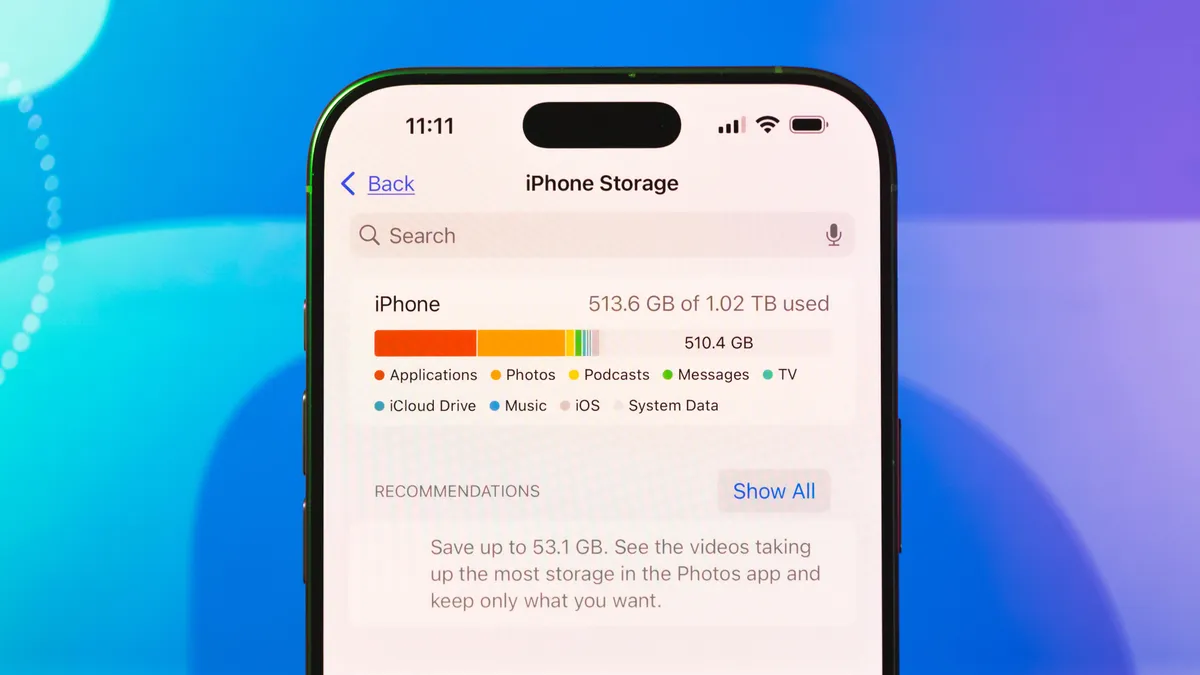
Before you delete a single photo, you need a strategy. Just randomly deleting files is like trying to bail out a sinking boat with a teaspoon. You need to find the biggest leak first. Both Android and iPhone have a storage manager in the settings that shows you exactly what’s going on.
- On iPhone: Go to
Settings > General > iPhone Storage. - On Android: Go to
Settings > Storage(orSettings > Battery and device care > Storageon Samsung devices).
You’ll see a bar chart that immediately identifies the main culprits. For most people, it looks something like this:
Photos:
60%
Apps:
20%
System:
15%
Other:
5%
This simple check turns a vague problem into a clear target. Now, let’s go after it.
Quick Wins: Reclaim Gigabytes in Under 10 Minutes
Once you know your enemy, you can start with easy victories that clear out digital junk without touching your important files.
Tame Your App Caches
Your most-used apps like Chrome, TikTok, and Instagram store temporary data, or a ‘cache’, to load faster. Over time, this junk can swell to several gigabytes. Clearing it is safe; it doesn’t delete your accounts or personal information, but it can free up a surprising amount of space.
A Common Mistake: Many users confuse “Clear Cache” with “Clear Data.” Clearing the cache is harmless. Clearing data, however, resets an app to its factory state, deleting logins and settings. Always choose “Clear Cache” unless you intend to fully reset the app.
Vanquish Your Downloads Folder
That Downloads folder is a digital graveyard for things you only needed once: a PDF ticket from six months ago, a random music file, a document for work. Go through it and delete everything you no longer need. It’s often a goldmine of wasted space.
Stop Messaging Apps from Hoarding Media
WhatsApp, Telegram, and iMessage are notorious for automatically saving every single photo and video you’re sent. One user I spoke with cleared 22GB just by tackling their WhatsApp media. Dive into your messaging app’s settings, find the storage section, and turn off automatic media downloads. Then, review the largest files and delete the junk.
The Heavy Hitters: Tackling Photos, Videos, and Apps
The most effective way to free up significant storage is by managing your largest files—photos and videos—and removing apps you no longer use. These two categories typically account for the vast majority of used space on a person’s phone.
Quick wins are great, but the real space is held hostage by your media and apps. This is where you’ll see the biggest returns.
Your Photo Library Is the Biggest Culprit
Your collection of photos and videos is almost certainly the single biggest space hog. The best solution is to move them to the cloud.
Services like Google Photos and Apple’s iCloud can back up your entire library. Once they are safely backed up, you can use the built-in “Free up space” tool to delete the original high-resolution files from your device, reclaiming enormous amounts of storage. Some people prefer to just pay a few dollars a month for more cloud storage, deciding it’s worth the price to avoid the headache. How long your phone can last often depends on how well you manage its storage, making this a critical habit for device longevity. Find out more in our guide on How Long Can Your Phone REALLY Last? Guide for Smart Consumers.
The App Graveyard: Delete or Offload?
Be honest: you have apps you haven’t opened in months. Deleting them is the obvious choice. On an iPhone, you also have the option to “Offload App.” This deletes the app itself but saves your documents and data. If you ever reinstall it, your information will be waiting for you. It’s a fantastic middle ground.
What About Pre-installed Bloatware?
Many Android phones come with carrier or manufacturer apps you can’t uninstall. This is bloatware, and it’s a major frustration. While you often can’t remove them completely without advanced methods, you can “Disable” them in your app settings. A disabled app won’t run in the background or store new data, effectively putting it in a deep sleep.
Demystifying That Giant “System Data” Blob
System Data, sometimes called “Other,” is a catch-all category for files that don’t fit elsewhere, such as system caches, logs, temporary files, and remnants of software updates. While you can’t delete it directly, you can reduce its size by clearing app caches and, in extreme cases, performing a backup and restore.
This is the most mysterious and infuriating category. It can swell to 50GB or more for no clear reason. This space is filled with things like old software update files and system logs.
Sometimes, a simple restart can clear out some temporary files and reduce this number. However, the most effective fix, confirmed by countless users, is the “nuclear option”:
- Perform a full backup of your phone to iCloud, your computer, or Google.
- Perform a factory reset (Erase All Content and Settings).
- Restore your phone from the backup you just made.
This process sounds intimidating, but it often shrinks the ‘System Data’ down to a reasonable size without you losing any important information. And remember, keeping your phone’s storage clean can indirectly protect you, as a full phone may fail to install critical security patches. Learn more about mobile threats in our article, Is Your Phone Spying on You? 12 Signs You’ve Been Hacked (& How to Fix It).
A Smarter Way Forward: Habits to Keep Your Phone Lean
Cleaning is good, but prevention is better. Adopt these habits to stop storage problems before they start.
Stream, Don’t Store
Instead of downloading huge playlists or entire seasons of a show, try to stream them. For services like Spotify and Netflix, make a habit of periodically reviewing your offline downloads and clearing what you no longer need. Those saved podcasts you already listened to are another easy target for deletion.
Embrace Disappearing Messages
Many messaging apps now have a feature to automatically delete messages after a set period, like 24 hours or 90 days. Turning this on for noisy group chats is a fantastic, set-it-and-forget-it way to prevent media buildup.
Take Back Control of Your Digital Life
Your phone is a tool that should make your life easier, not a source of constant frustration. The feeling of a full, slow phone is a drag on your productivity and peace of mind. But now you have a clear, actionable plan.
You understand the problem, you see how it impacts you, and you are armed with the solutions. Don’t wait for that dreaded notification to pop up again. Pick one of these strategies—start by clearing your app caches or deleting your downloads folder—and do it right now. For more on keeping your device in top shape, check out our guide on how to Clean Your Phone’s Charging Port: A Definitive Guide. Take back control today.
References / Sources
[1] optimum.com