Smartphone reviews, tips, news, guides, and updates for Android & iPhone.

Get Your Phone Screen on a TV: The Easy Guide
That tiny screen in your hand holds a universe of content—family photos, epic movies, the latest viral video. Yet, trying to share it with others often means everyone awkwardly huddling together, squinting to see. The beautiful big-screen TV on your wall feels worlds away, a missed opportunity for a shared experience.
You've likely felt the frustration. You wrestle with a choppy Wi-Fi connection, watching your video stutter and freeze every few seconds. Or worse, you try to mirror a movie you rented, only to be met with a baffling black screen. It’s a common headache that makes a simple task feel like a complex technical challenge. It shouldn’t be this hard.
This guide cuts through the confusion. We'll show you the simplest ways to get your phone's screen onto your TV, explain the crucial differences between your options, and solve the most common problems so you can get it right the first time, every time.
In a Nutshell
- Easiest for Video Apps: Use the 'Cast' feature in apps like YouTube or Netflix. It sends the video to the TV directly from the internet, freeing up your phone for other tasks.
- Best for Everything Else: 'Screen Mirroring' shows a direct copy of your phone screen. It's perfect for photos, websites, or apps that don't have a Cast button.
- Perfect Quality & Gaming: A direct cable connection (like USB-C to HDMI) offers a flawless, lag-free picture that wireless methods can't match.
Wireless vs. Wired: Picking Your Connection
The best way to display your phone on a TV is wirelessly using Wi-Fi for convenience, or with a direct cable connection for perfect quality and no lag. Wireless is great for streaming media, while a cable is superior for gaming and presentations.
Choosing between wireless and wired isn't just about cutting cords; it's about picking the right tool for the job. One offers freedom, the other offers flawless performance.
Easiest Method: Going Wireless with Wi-Fi
For most people, a wireless connection using your home Wi-Fi is the simplest way to start. It's clean, quick, and involves no fumbling with cables behind the TV. There are two very different ways to do this.
Casting: The Smart Way to Stream
Casting is your best friend for apps like Netflix, YouTube, or Hulu. When you tap the 'Cast' icon (it looks like a rectangle with a Wi-Fi signal in the corner), you aren't streaming the video from your phone. Instead, you're telling the TV or streaming device to fetch the video directly from the internet.
The benefit? It’s incredibly efficient. The video plays in high quality on the TV, and your phone is completely free to use for calls, texts, or anything else. As one user noted, explaining this concept was the key: "My parents finally understood how to use the 'Cast' button. Explaining that it just tells the TV what to play, and doesn't actually stream from their phone, was the key."
Screen Mirroring: Your Exact Screen, Bigger
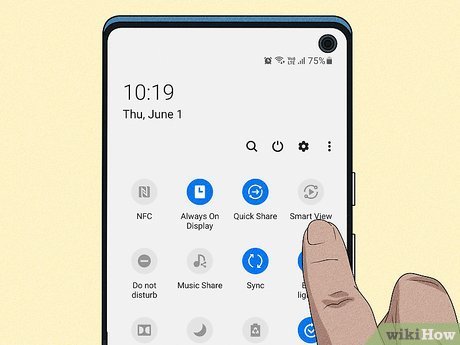
Screen Mirroring does exactly what it says: it puts a direct copy of your phone's screen onto the TV. This is the perfect tool for sharing things that don't have a 'Cast' button.
Think about showing a photo gallery to your family, browsing a website together, or demonstrating how an app works. Whatever you do on your phone—swipe, tap, rotate—happens on the big screen in real-time.
Best Quality Method: Using a Simple Cable
While wireless is convenient, a wired connection is unbeatable for reliability. A direct cable has no lag. None. This makes it the champion for playing fast-paced games from your phone on the TV.
As one user discovered after a frustrating wireless experience, "I fought with my Wi-Fi for an hour trying to get screen mirroring to work without stuttering. I finally just bought a $20 USB-C to HDMI cable and it worked perfectly in two seconds." For most new Android phones and the iPhone 15 series or newer, a single USB-C to HDMI cable is all you need. Just be sure your phone's port is clean for a solid connection; sometimes debris can cause issues, a problem many people overlook until it's too late. If you suspect this might be an issue, learning how to clean your phone's charging port can save you a headache.
Connection Method Showdown
| Feature | Wireless (Casting/Mirroring) | Wired (HDMI Cable) |
|---|---|---|
| Quality | Good to Great | Perfect / Lossless |
| Lag | Minor to Moderate | Zero |
| Convenience | Very High | Moderate |
| Best For | Movies, Casual Use | Gaming, Presentations |
Solving Common Connection Problems
To fix wireless display issues, ensure your phone and TV are on the same Wi-Fi network. Move your router closer to the TV to fix stuttering, and use the 'Cast' feature inside streaming apps to avoid black screens caused by mirroring restrictions.
Even simple tech has its quirks. Here’s how to solve the most common frustrations you might encounter.
The Dreaded Black Screen Mystery
Ever tried to screen mirror a movie you rented from an app, only to see a black screen on the TV? This is not a bug; it's a feature. Many streaming apps block screen mirroring to protect their copyrighted content.
As one user found out, "It's so frustrating when you try to mirror a movie you rented and the screen just goes black. I didn't know it was blocked on purpose until I searched on Reddit." The solution is simple: don't use screen mirroring for these apps. Use the built-in 'Cast' button instead.
Choppy, Stuttering Video Fixes
If your wireless stream is constantly buffering, your Wi-Fi signal is likely the culprit. Your phone might be too far from your router, or the streaming device is struggling to get a good signal.
A great pro tip is to address the source: "If your Chromecast is choppy, try moving your Wi-Fi router closer to the TV or plugging the Chromecast into a different HDMI port." Even a few feet can make a massive difference in signal strength.
What Gear Do You Actually Need?
For Android phones, you typically need a Google Chromecast or a TV with Chromecast built-in. For iPhones, you'll need an Apple TV or an AirPlay-compatible TV. For a wired connection, a single USB-C to HDMI cable or adapter is usually all you need.
Getting the right hardware is the final piece of the puzzle. Luckily, it's very straightforward.
For Android Users (Google's Ecosystem)
The easiest way to get content from your Android phone to a TV is with a Google Chromecast. It's a small device that plugs into your TV's HDMI port. Many modern TVs also come with 'Chromecast built-in', meaning you don't need any extra hardware.
For iPhone Users (Apple's Ecosystem)
Apple's system is called AirPlay. To use it, you'll need an Apple TV box connected to your television, or a newer TV that is specifically labeled as 'AirPlay compatible'. You can then mirror your screen or cast content from your iPhone, iPad, or Mac with a single tap.
Advanced Scenarios Most Guides Forget
For special situations, a wired connection is best for mobile gaming due to zero latency. When traveling, use a dedicated travel router to connect your streaming stick in hotels. Also, be mindful of privacy when mirroring sensitive information.
Sometimes you're not in your own living room. Here’s how to handle a few less-common but important situations.
Mobile Gaming on the Big Screen
For serious mobile gamers, a wired connection is the only way to go. The zero-lag performance ensures your on-screen actions are instant, which is critical in competitive games. The performance demands of high-end games mean that even phones with powerful processors need every advantage, and a stable, wired output removes a major variable. This relates to the broader question of how much power you need, like the ongoing debate over [2GB vs. 4GB RAM Smartphones: The Unseen Battle for Performance](https://capitaltechwire.com/2gb-ram-vs-4gb-ram-smartphone/).
Using Your Phone with a Hotel TV
Hotel Wi-Fi often uses a 'captive portal'—that web page where you have to enter your room number and agree to terms. Streaming sticks can't navigate these pages, making them useless. The best solution is a travel router, which can handle the login and create a private Wi-Fi network for all your devices.
Privacy and Security When Mirroring
Remember, screen mirroring shows everything. That includes incoming text message notifications, emails, and app alerts. Before you start a presentation or share photos with family, turn on your phone's 'Do Not Disturb' mode to prevent an embarrassing or private notification from popping up for everyone to see. In today's world, understanding these risks is critical, because as some experts say, [Your Phone's Security Is a Myth in 2026](https://capitaltechwire.com/your-phones-security-is-a-myth-in-2026/).
Your Big Screen Awaits
Getting your phone's content onto your TV doesn't have to be a source of frustration. By understanding the key differences between Casting, Screen Mirroring, and a direct wired connection, you can choose the perfect method for any situation.
For watching movies, Casting is your smartest choice. For sharing photos or gaming, a simple cable provides the flawless experience you deserve. Armed with this knowledge, you can finally make the most of both of the screens you own.
Which method are you going to try first? Share your experience in the comments below!