Smartphone reviews, tips, news, guides, and updates for Android & iPhone.

Unlock Android Phone: No Password, No Problem – Regain Access Now!
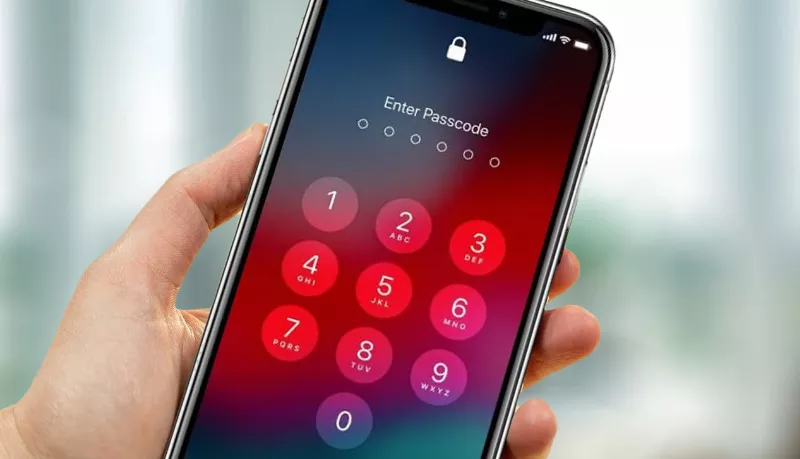
The heart-stopping moment when your Android phone screen greets you with a lock, but your mind draws a blank on the password, PIN, or pattern. Panic sets in. Your digital life, from photos to contacts, feels suddenly out of reach. This isn’t just an inconvenience; it’s a genuine problem that can disrupt your entire day. You might feel a wave of frustration, thinking, “I wish there was a way to get past the lock screen without losing everything!” Many users voice this same agitation, particularly when faced with the prospect of losing precious memories or crucial data. This guide cuts through the confusion, offering clear solutions to get you back into your device, and crucially, to prevent this nightmare from happening again.
Key Takeaways
- Google Find My Device or Samsung Find My Mobile can often unlock your phone remotely, sometimes even without data loss.
- Factory resetting via Recovery Mode is a powerful last resort, but always erases all data and triggers Factory Reset Protection (FRP).
- Proactive steps like setting up recovery options and regular backups are your strongest defenses against future lockouts.
Google Find My Device: Your Remote Lifeline
Google Find My Device is an indispensable tool that allows you to locate, secure, or completely erase a lost or locked Android device remotely. This service is your first line of defense if your phone is powered on, connected to the internet (Wi-Fi or mobile data), and signed into a Google account. It’s a lifesaver for many, offering quick action from any web browser.
How to Use Google Find My Device
To use this method, simply visit findmydevice.google.com on another device, like a computer or a friend’s phone. Sign in with the same Google account that is linked to your locked Android phone. Once logged in, Google Find My Device will attempt to locate your device on a map. You’ll see several options: “Play Sound,” “Secure Device,” and “Erase Device.”
The “Secure Device” option is particularly useful if you only forgot your password. It allows you to lock your phone and set a new, temporary password that overrides the old one. After you set this temporary password and lock the device, you can then use it to unlock your phone. Once in, head to your phone’s security settings to disable or change the password permanently. For those needing a hard reset, the “Erase Device” option will wipe all data, effectively unlocking the phone but leaving it in a factory-new state.
Samsung Find My Mobile: A Samsung-Specific Advantage
For Samsung device owners, an even more powerful tool exists: Samsung Find My Mobile (also known as SmartThings Find). This service offers a unique advantage: the ability to unlock your phone remotely without losing data, a feature not typically available with Google Find My Device. This can alleviate the common user frustration of losing precious photos and apps.
Enabling and Using Samsung Find My Mobile
Critical to this method is having a Samsung account linked to your phone and ensuring the “Remote unlock” feature was turned on before your phone became locked. If these conditions are met, navigate to findmymobile.samsung.com on a browser. Sign in with your Samsung account credentials.
Once logged in, select your locked device from the list. If your phone is online, you’ll see a panel with various options, including “Unlock.” Clicking this will prompt you to re-enter your Samsung account password for verification. After confirmation, your device will be unlocked, and you can then set a new lock screen method. This method truly offers a way out without the heartache of data loss.
Remote Unlock Tools Comparison
| Feature | Google Find My Device | Samsung Find My Mobile |
|---|---|---|
| Remote Unlock (No Data Loss) | Limited (set new temporary password) | YES (if ‘Remote unlock’ enabled) |
| Remote Erase (Factory Reset) | YES | YES |
| Account Required | Google Account | Samsung Account |
| Prerequisites | Online, Power on, Signed into Google | Online, Power on, Signed into Samsung, ‘Remote unlock’ ON |
Factory Reset via Recovery Mode: The Last Resort
Factory reset via Recovery Mode is the universal last resort when other remote methods are not an option, perhaps because your phone is offline or not registered with remote services. This method will wipe your phone completely clean, deleting all data, including your lock screen password. It effectively restores the device to its original factory settings.
Steps to Perform a Hard Reset
First, power off your Android phone completely. Then, you need to enter Recovery Mode by pressing and holding a specific combination of physical buttons. These combinations vary by manufacturer but commonly involve the Power button and a Volume button (either Volume Down or Volume Up). For Samsung phones, it might be Volume Up + Home + Power, or Volume Up + Power after connecting to a PC. For Google Pixel and most other Androids, it’s often Power + Volume Down.
Once in Recovery Mode (which often displays a text-based menu), use the Volume buttons to navigate and the Power button to select. Locate and choose the “Wipe data/factory reset” option. Confirm your selection. After the reset completes, select “Reboot system now.” Your phone will restart, unlocked, but all your personal data will be gone.
“Factory Reset Protection (FRP) is a critical security feature. It’s designed to make stolen phones unusable by requiring the original Google account credentials, even after a factory reset.” – Android Security Blog [cite: Expert Level]
The Factory Reset Protection (FRP) Challenge
After performing a factory reset, particularly on Android devices running Android 5.1 and newer, you will encounter Factory Reset Protection (FRP). This security feature demands the login details of the last Google account synced to the device before the reset. If you don’t know these credentials, your phone remains locked, effectively becoming unusable. This is a crucial security layer designed to prevent thieves from simply wiping a stolen phone and using it.
This is where many users hit a wall, as highlighted by comments like, “I factory reset my old tablet, but now it’s stuck on the ‘Verify your account’ screen because I forgot the Google account it was linked to. This FRP is a nightmare when it’s your own device!” There are no official, easy ways to bypass FRP if you don’t have the Google account credentials. The system is designed to be robust.
Forgotten Account Credentials: Bypassing FRP Challenges
Many users find themselves in a bind after a factory reset, facing FRP without remembering the associated Google account. While enterprise solutions like Hexnode UEM allow organizations to securely bypass FRP with specific Google Workspace or Google Account IDs, for individual users, the options are severely limited. Official channels do not offer a bypass without the correct credentials.
The only legitimate path is to recover your Google account. This involves using Google’s automated account recovery process, which typically requires access to a registered recovery phone number or email. It’s a series of security questions and verification steps to prove ownership. If you succeed, you might need to wait 24-72 hours after resetting the password before attempting to activate the phone again to avoid FRP blocking.
Data Recovery After Factory Reset: Realistic Expectations
The thought of losing all data, especially photos and videos, is a major source of anxiety for locked-out users. “I had to factory reset my phone and lost all my pictures because I forgot my PIN. I wish there was a way to get past the lock screen without losing everything!” This sentiment is common. Realistically, recovering data after a factory reset without a prior backup is exceptionally difficult, if not impossible, for most users.
Factory resets are designed to securely wipe data, making it very hard to retrieve. However, if you had a Google Drive backup enabled, or used a manufacturer’s cloud service (like Samsung Cloud) before the reset, you can often restore your apps, contacts, call history, and some device settings. Specialized third-party data recovery software claims to restore data post-factory reset, but their success rates vary wildly and depend heavily on how much new data has been written to the phone. The best advice is to stop using the phone immediately after a reset if you hope to recover anything, as continued use can overwrite remaining data fragments.
Beware of “Miracle” Third-Party Unlocking Software
Online, you’ll find countless tools promising to unlock any Android phone without a password and, crucially, without data loss. User skepticism is high: “Why do all the online tools promise to unlock without data loss but then just tell you to factory reset anyway? It’s so frustrating!” This is a valid concern. The reality is most such tools, especially those that claim to magically bypass lock screens without any prerequisites or data erasure, are often misleading. Many either perform a factory reset in the background or are ineffective, if not outright scams.
Legitimate tools often require specific conditions, like USB debugging enabled (ADB method), or they still resort to a factory reset. Always exercise extreme caution. Unverified software can introduce malware, steal personal data, or even brick your device. Stick to official methods or highly reputable software with verifiable track records and transparent explanations of their processes. Understand that if a solution seems too good to be true, it almost certainly is. This underscores why proactive security measures are far superior to reactive “magic bullet” solutions.
Unlocking When Offline: Limited Options
What happens if your Android phone is locked and offline? This common scenario prevents remote methods like Google Find My Device or Samsung Find My Mobile from working. Without an internet connection, these services cannot communicate with your device to send unlock or erase commands. This is where options become significantly more restricted.
Solutions for Offline Devices
- Factory Reset via Recovery Mode: This remains the most reliable method for an offline locked phone. Since it relies on physical buttons and the phone’s internal recovery system, no internet connection is needed. This will, however, erase all data.
- ADB (Android Debug Bridge): This method could bypass the lock screen without data loss if, and only if, USB Debugging was enabled on your phone before it locked, and your computer has been authorized. This is rare for most users as USB Debugging is typically a developer option and not usually left enabled on a daily-use device for security reasons. It involves connecting your phone to a computer and using specific command-line prompts. If USB Debugging wasn’t enabled, this method is unfortunately not viable.
- Older Android Versions (4.4 and below): Some very old Android versions had a “Forgot Pattern” feature after multiple incorrect attempts that allowed Google account login directly on the device, even without an active internet connection if the credentials were cached. This is largely obsolete on modern Android devices (5.0+).
Proactive Security: Prevent Future Lockouts
Getting locked out is a stressful experience, but many steps can be taken beforehand to minimize the risk and ensure a smoother recovery. The best defense is a strong offense, meaning robust security practices and preparedness.
Essential Prevention Strategies
- Maintain Google Account Access: Ensure your primary Google account has up-to-date recovery information (phone number, secondary email address). This is crucial for Google Find My Device and for FRP verification. Regularly review and update this information via your Google Account security settings.
- Enable Samsung Remote Unlock: If you own a Samsung device, always ensure “Remote unlock” is enabled within your Find My Mobile settings. This is your best chance for a data-preserving unlock.
- Regular Backups: Implement automatic cloud backups (Google Drive, Google Photos, Samsung Cloud) for your critical data. This makes data loss from a factory reset far less devastating. Manual backups to a computer or external storage are also excellent. Consider linking to “Your Android Has a Flaw. Update Now.” here to emphasize general device health and security.
- Smart Lock (Extend Unlock): Utilize Android’s built-in Smart Lock feature, also known as “Extend Unlock.” This keeps your phone unlocked in trusted situations, such as when it’s on your body, at a trusted location (like home), or connected to a trusted Bluetooth device (e.g., your smartwatch or car). This reduces the frequency of manual unlocks, lowering the chance of forgetting a password. However, remember that Smart Lock will still require your PIN after a restart or after 4 hours of inactivity for security.
- Strong, Unique Passwords: While seemingly obvious, using a complex, unique password or pattern is vital. Avoid easily guessed combinations. For more security tips, consider reading “Your Android Lock Screen Can Be Hacked in 60 Seconds” to understand the vulnerabilities.
FAQs
Can I unlock my Android phone without losing data if I forgot the password?
Yes, potentially. For Samsung users, Samsung Find My Mobile offers a “Remote unlock” feature that can unlock your device without data loss, provided it was enabled beforehand. Google Find My Device allows you to set a new temporary password, but its primary “Erase Device” function causes data loss.
What is Factory Reset Protection (FRP) and how does it affect unlocking?
FRP is a security measure on Android 5.1+ devices. After a factory reset, it requires you to enter the Google account credentials last synced to the device. If you don’t know these, the phone remains locked. There’s no official bypass for individual users without those credentials.
What if my phone is offline and locked? Can I still unlock it?
If your phone is offline, remote unlocking services like Google Find My Device or Samsung Find My Mobile will not work. Your primary option becomes a factory reset via Recovery Mode, which will erase all data. The ADB method is only viable if USB Debugging was enabled before the lockout.
Conclusion: Regain Control, Stay Prepared
Being locked out of your Android phone is undoubtedly a frustrating experience, but it doesn’t have to be a permanent one. Equipped with the right knowledge and tools, you can regain access to your device. Whether it’s through the remote capabilities of Google Find My Device or Samsung Find My Mobile, or the more drastic, but effective, factory reset via Recovery Mode, a solution exists for almost every scenario. Remember, the digital world demands both security and foresight. Prioritize setting up recovery options and regular backups today. This will transform panic into a simple inconvenience, giving you peace of mind that your data and device are always within reach. Ensure your device is always protected, not just from lockouts, but from wider threats; learn more by checking if “Does Android Phone Need Antivirus?” is still relevant for you.”}